Setting up the Merchant
Learn how to set up merchant accounts in the Koard Merchant Management System (MMS) and configure them for tap-to-pay payments.
 Access UAT MMS
For the safety and security of your merchant accounts, complete our merchant checklist before going live.
Immediately after you create a merchant account, you can use it in testing environments. In a sandbox (A sandbox is an isolated test environment that allows you to test Koard functionality without affecting your live integration. Use sandboxes to safely experiment with new features and changes), simulate transactions and use all of Koard's features without moving any money. To accept real payments, you must activate your merchant account to use live mode.
Prerequisites
Before you begin, ensure you have:
- Access to the Koard Merchant Management System
- Valid business registration documents
- Tax identification number for each merchant
- Merchant Category Code (MCC) for each business
- Processor credentials (MID, TID, VIN) or Partner ID
- Sandbox Apple Account on dedicated test iPhone for validating Tap to Pay flows
Dedicated Test Hardware: Make sure your Sandbox Apple Account is signed in on a separate test iPhone. You'll need it to validate Tap to Pay flows before onboarding merchants in production.
Access the Merchant Management System
UAT Environment
For testing and development, use the UAT MMS: https://app.uat.koard.com
Production Environment
For live merchant onboarding: https://app.koard.com
Create a Merchant
To create a merchant, fill out the merchant application requesting basic information about the business, processor details, and location information. After creating the merchant, you can immediately start configuring terminals and processing payments.
Koard's merchant onboarding requirements ensure compliance with payment processor regulations and Apple's tap-to-pay guidelines. These requirements come from our financial partners and Apple, and are intended to prevent abuse of the payment system. We review the information you provide internally to make sure that it complies with our merchant agreement.
After you create a merchant account, you can't change its country. If you need to use Koard in a different country that we support, you must create a new merchant account.
Privacy and security are priorities for Koard. Our merchant data handling follows industry standards for payment processing and Apple's security requirements.
Navigate to Accounts
- Log into the MMS
- Go to the Accounts tab
- You'll see a list of existing Partners
- Click
 Add Account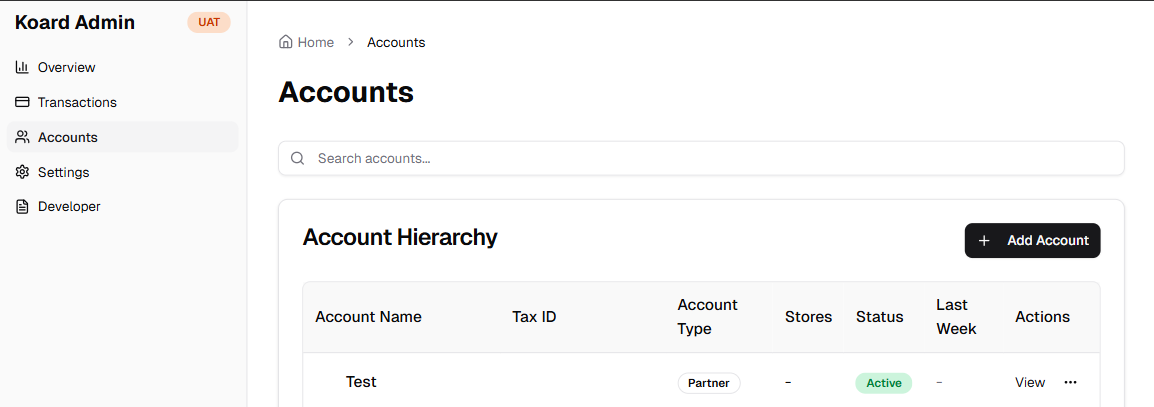
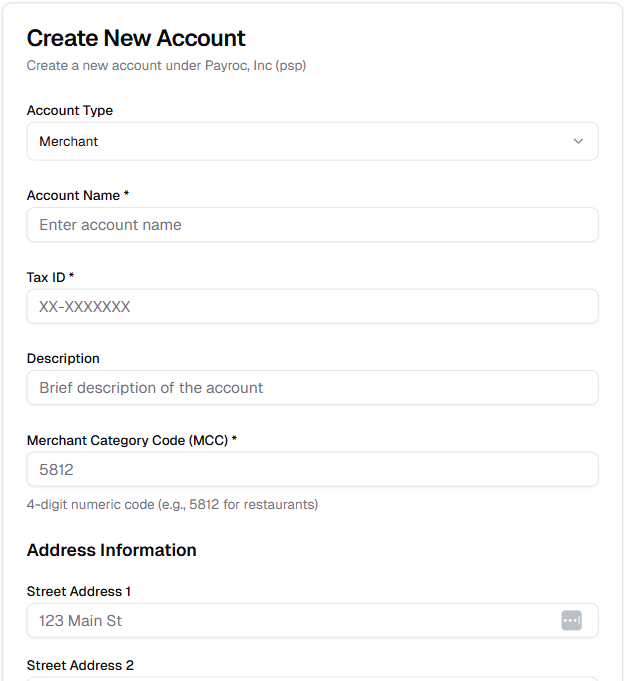
Fill Required Fields
Every merchant requires these mandatory fields:
- Name: Business name or legal entity name
- Tax ID: Unique tax identification number (merchants with the same Tax ID will be grouped together)
- MCC Code: 4-digit Merchant Category Code
- HQ Country: Headquarters country location
Save Merchant
Click Save to create the merchant account.
Assign a Terminal
Create New Terminal
- After creating the merchant, click
 New Terminal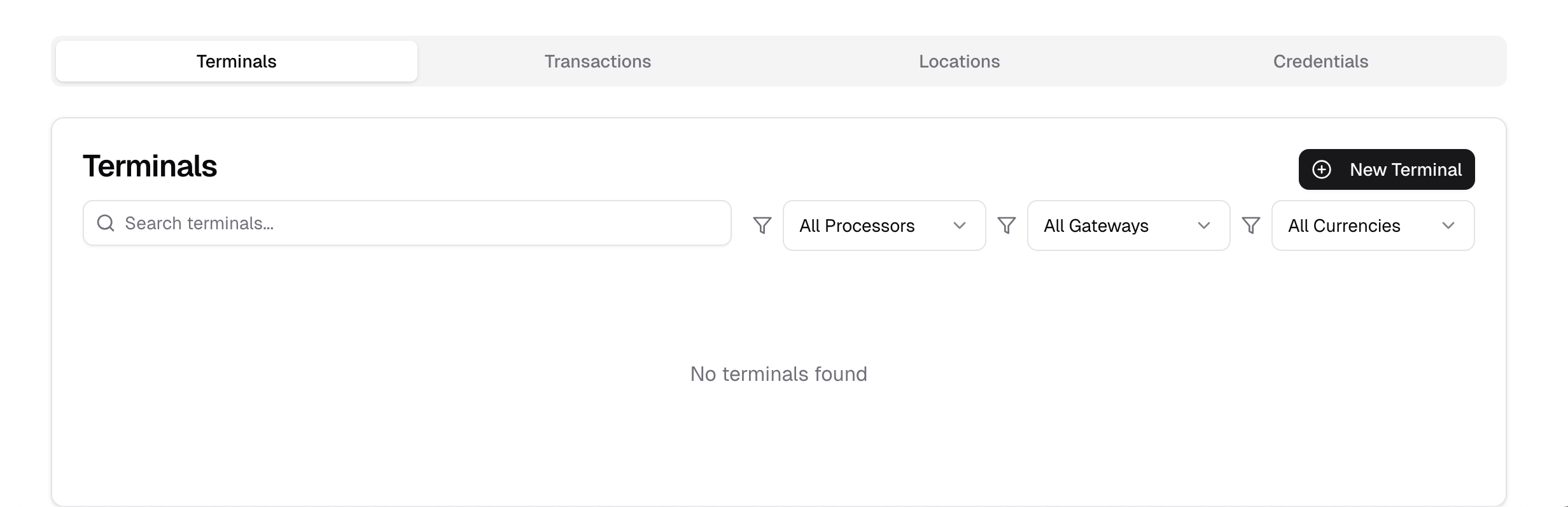
Configure Terminal Details
For most processors, enter:
- MID: Merchant ID from your processor
- TID: Terminal ID from your processor
- VIN: Vendor ID from your processor
For processors like Payroc where merchants have their own ID:
- Replace MID, TID, and VIN with the Partner ID (or Processing Terminal ID)
- Configure the terminal details by clicking
 Edit Terminal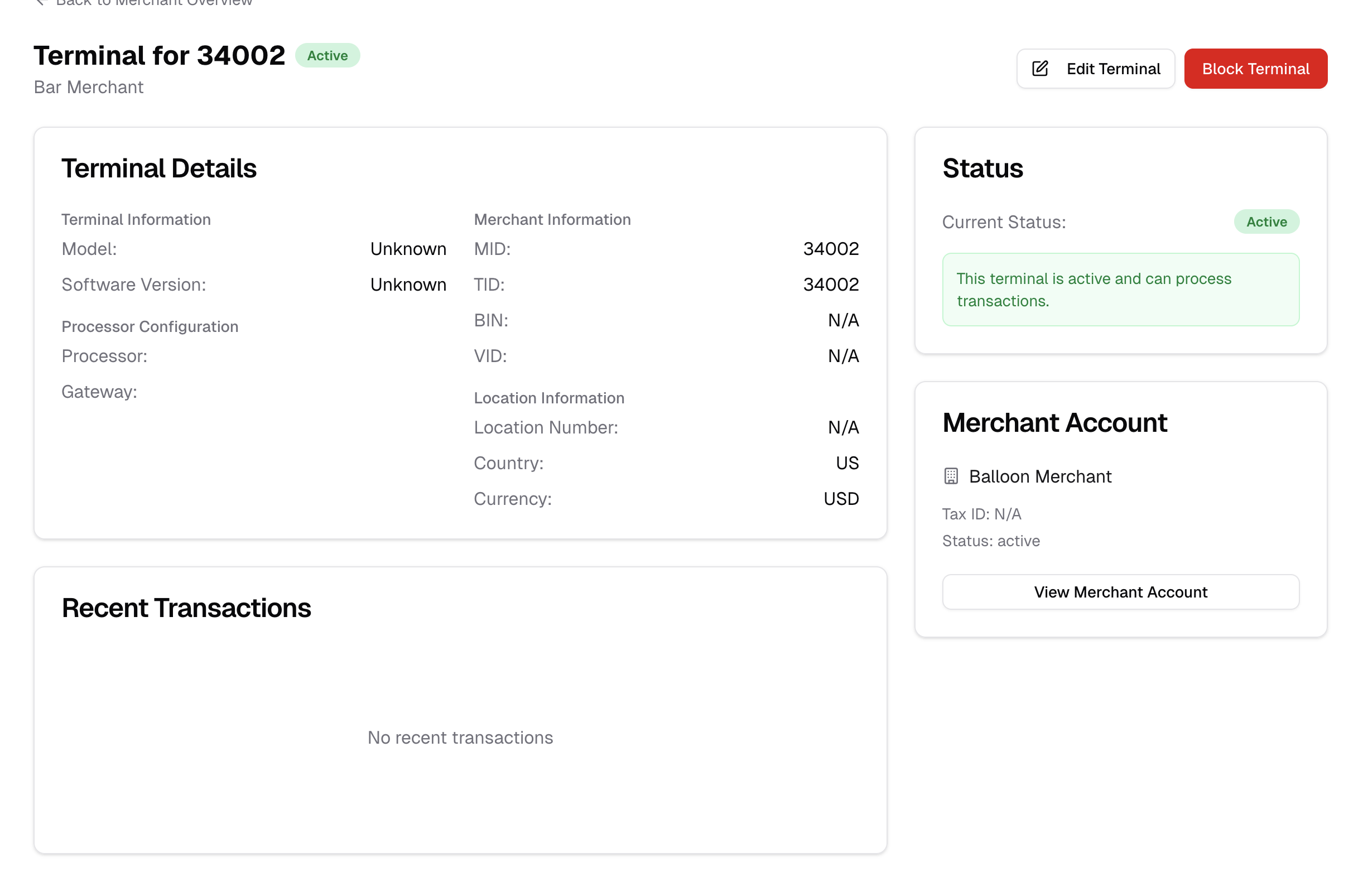
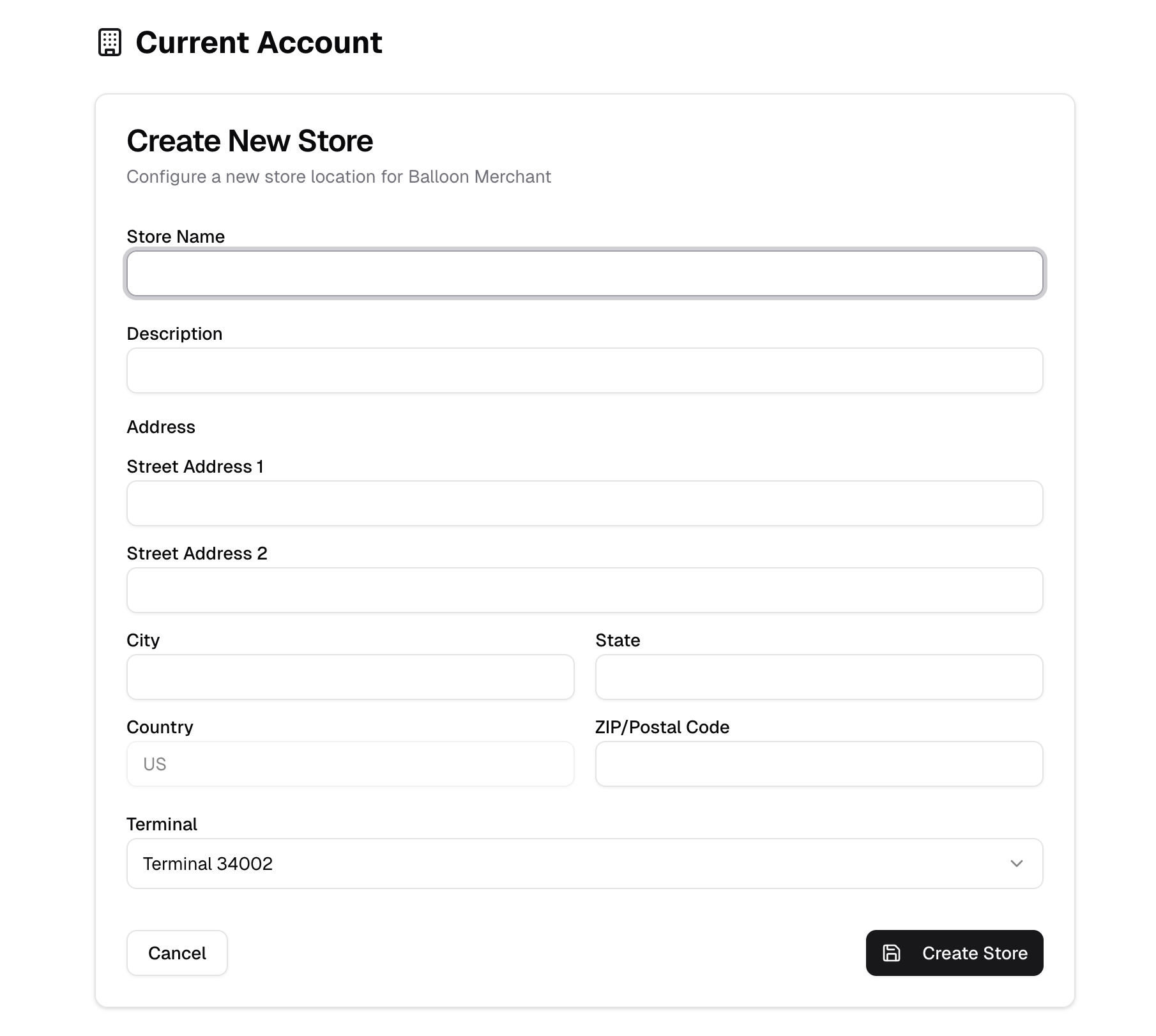
Assign Location
- Go back to the merchant account to access the Locations tab
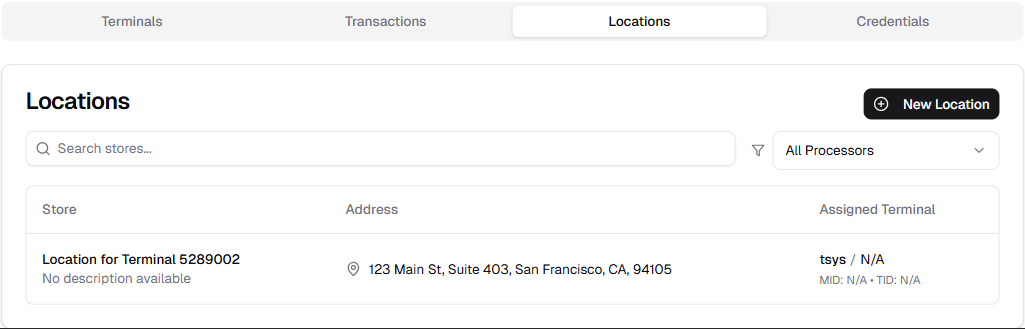
- Click
- Assign the terminal to that location
- This gives the merchant a physical location to accept payments from
Create Merchant Credentials
Your merchants will use these credentials to authenticate with the Koard SDK and process payments. The credentials are tied to specific locations and terminals, ensuring secure payment processing.
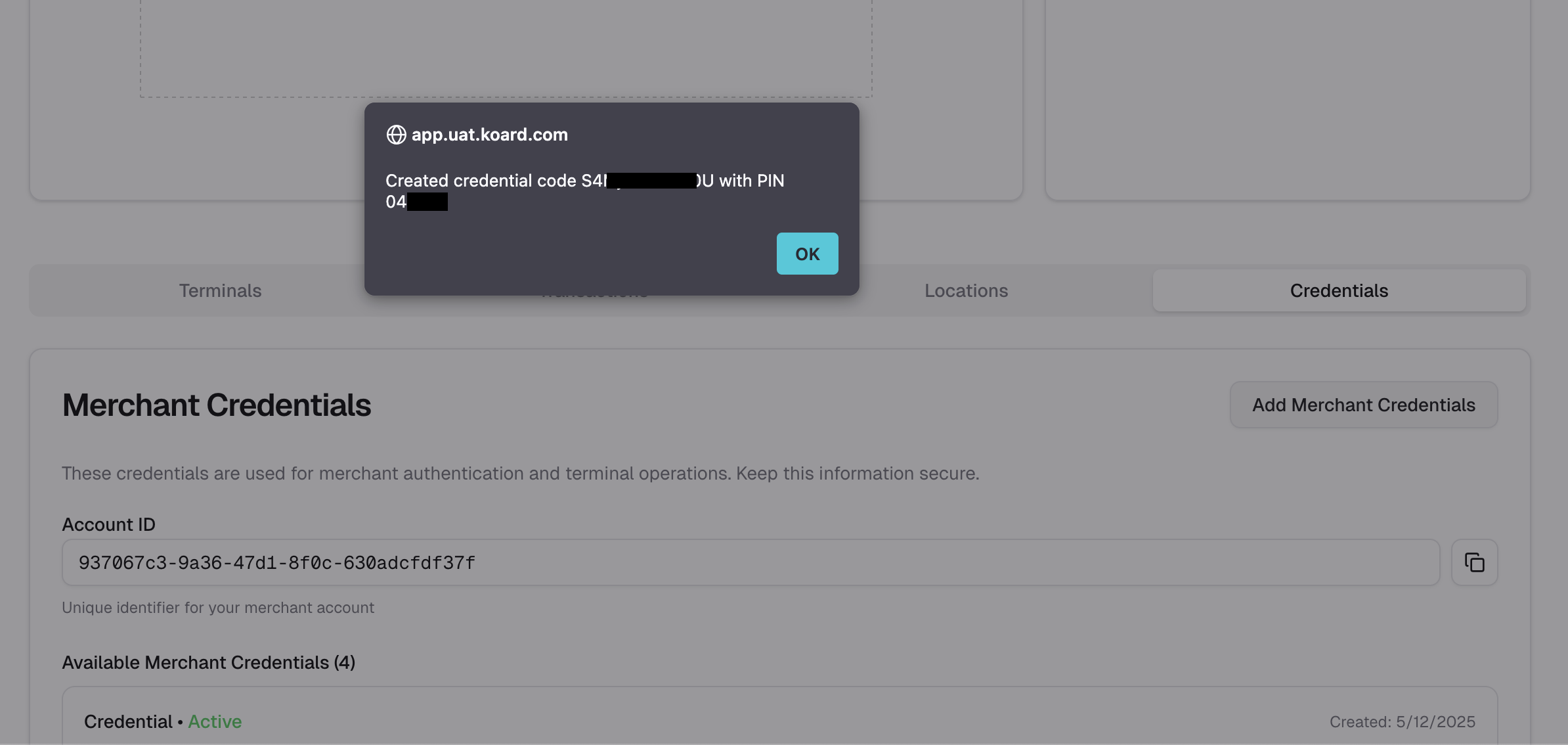
Generate Credentials
- Navigate to the merchant's credential section
- Click Create Merchant Credentials
- Generate a unique Code and PIN for the merchant
SDK Integration
Merchants can use these credentials to log into the SDK:
KoardMerchantSDK.shared.login(
    "Code": "YOUR_CODE",
    "PIN": "YOUR_PIN"
)
Location Configuration
- Merchants can set their location from the SDK or your mPOS app
- Location is required to create a card reader session on the iPhone
- This ensures payments are processed at the correct merchant location
Security Note: Keep merchant credentials confidential. Store them securely on your servers and never share them in client-side code or public repositories.
Multiple Processor Support
Each merchant can be configured with multiple MIDs based on the supported processors you have access to:
- Primary Processor: Main payment processor for the merchant
- Secondary Processors: Backup or specialized processors
- Regional Processors: Location-specific payment processing
Verification and Testing
Verify Configuration
- Check that all required fields are completed
- Verify processor credentials are correct
- Ensure location is properly assigned
Test Integration
- Use the UAT environment to test merchant login
- Verify terminal assignment works correctly
- Test payment processing with test cards
Go Live
- Move merchant to production environment
- Update SDK credentials for production
- Monitor initial transactions
Keep your merchant accounts safe
After you set up your merchant accounts, you'll want to keep them secure. Here are our recommendations:
- Keep private information private: Don't share merchant credentials and keep your secret API keys confidential on your own servers. As a reminder, Koard employees will never ask you for your keys.
- Use unique credentials: Generate unique codes and PINs for each merchant. If you reuse credentials across merchants and one account is compromised, an attacker could access multiple merchant accounts.
- Use team members to provide others with access: You can invite others (with limited access) to your Koard MMS account so that they can log in and take certain actions without full administrative access.
- Update your computer and browser regularly: We recommend configuring your computer to automatically download and install updates. This helps protect your system against automated attacks and malware.
- Beware of phishing: All genuine Koard sites use the
koard.comdomain and HTTPS. If you get an email from us that you don't expect, go directly to our site to log in. Don't enter your password after clicking a link in an email. - Enable two-factor verification: When you enable two-factor authentication, you'll need to provide an additional unique code from your mobile device to complete the login process. This means that even if someone steals your username and password, they won't be able to log in.
Best Practices
- Unique Tax IDs: Ensure each merchant has a unique tax identification
- Proper MCC Codes: Use accurate Merchant Category Codes for compliance
- Location Accuracy: Verify physical locations match processor records
- Credential Security: Store merchant credentials securely
- Regular Audits: Periodically review merchant configurations
Troubleshooting
Common Issues
- Duplicate Tax IDs: Merchants with same Tax ID will be grouped together
- Invalid MCC Codes: Ensure 4-digit codes are valid for your region
- Processor Mismatch: Verify processor credentials match your configuration
- Location Errors: Ensure locations are properly assigned to terminals
Support
For technical issues with merchant setup:
- Check the Resources section
- Contact Koard support for processor-specific issues
- Review Apple Best Practices for compliance
See also
- iOS SDK Installation - Install and integrate the Koard Merchant SDK into your iOS application
- Tap to Pay Configuration - Configure Tap to Pay on iPhone functionality in your app
- Webhook Setup - Configure webhooks to receive real-time payment event notifications
- Payment Testing - Learn how to process and test payments with the Koard SDK
- Apple Best Practices - Follow Apple's guidelines and best practices for Tap to Pay development

